How to Schedule Tuition Lessons Without Excel Sheets
· 8 min read · By Gregory Tan
To schedule tuition lessons without Excel, give every lesson one home: a calendar that repeats lessons by itself, shows clashes before you say yes, and skips public holidays. Write each student's regular slot once, mark weekly lessons as repeating, block the days you are away, and move single lessons when plans change instead of retyping the timetable. Below is how to do it with a paper diary, Google Calendar or a tuition app, and how a Singapore tutor can keep one clean week even in the middle of PSLE and O-Level season.
Why an Excel timetable stops working
A spreadsheet is a good first timetable. For five students it is fine. By fifteen students, with a few groups, a centre and some online lessons, the cracks show.
- Nothing repeats. Every Tuesday 4pm lesson is a row you copy and paste, or a column you have to remember to fill. When Term 4 ends you rebuild the sheet.
- Nothing warns you. Excel won't tell you that Jayden's Sec 3 Maths overlaps Hui Min's P6 Science until both parents are already waiting at the door.
- Public holidays are your job. You have to know that a lesson falls on a public holiday, then decide whether it goes ahead. The Ministry of Manpower publishes the list each year, but nobody is checking it for you.
- One change means three edits. Moving a lesson means changing the sheet, messaging the parent and fixing the invoice later.
- It lives on one device. The latest copy is on your laptop, and you are on the MRT with your phone when a parent asks, "Are you free on Thursday?"
Set up a schedule that runs itself
Whatever tool you use, the same five habits keep a tuition week under control. A notebook can do the first two. A calendar app can do all five.
1. Write each student's regular slot once
Most students come at the same time every week: Wednesday 3:30pm for P6 Maths, Saturday 10am for Sec 4 A Maths. Record the day, start time, length and place once, and mark it as repeating. If you re-enter the same lesson every week, you are doing a job the calendar should do.
| Detail | Example | Why it matters |
|---|---|---|
| Student and subject | Chloe, Sec 4 H2 Maths | The lesson shows who it is for at a glance |
| Day, start and length | Wed 3:30pm, 1 hour | Length lets you see clashes, not just start times |
| Place | Online, or student's HDB flat in Tampines | Travel time between lessons is the clash you don't see |
| Repeat | Every week until the end of term | Stops you retyping the timetable |
2. Count travel time, not just lesson time
Home tutors lose more time to travel than to clashes. A 5pm lesson in Bishan and a 6pm lesson in Punggol looks fine on paper, but not if you are travelling by MRT and bus. When you book lessons, leave a gap that matches the journey. Cluster lessons in the same estate on the same day where you can, and keep online lessons for the awkward gaps.
3. Block your own time first
Block off the things that are not lessons: a dentist visit, your own exams if you are studying, a family trip, school holidays you want to keep. Put them on the same calendar so a parent asking for that slot gets an honest "no" without you checking three places.
4. Plan around the school year
MOE publishes school terms and holidays each year, and national exam dates come from SEAB. Mark the exam weeks (PSLE, N- and O-Level, A-Level, and the new SEC from 2027) and your students' own school prelims. Tutors usually add lessons before exams and cut back after. Our guide to planning your tuition year around exams goes through it month by month. For the official dates, see the MOE school terms and holidays page and SEAB's important dates.
5. Decide what happens on a public holiday
Decide this once, and write it in your policy. Some tutors teach on public holidays and some do not. Either way, tell parents early, and make sure an unplanned holiday does not become a lesson that is billed but never happens. The Ministry of Manpower keeps the official list of public holidays. If you also run make-ups, our cancellation and make-up lesson policy has wording you can copy.
Three ways to schedule tuition
A paper diary or notebook
Fine for a handful of students. One page per week, lessons in pencil. The weak points: nothing repeats, nothing warns you, and a lost notebook is a lost business.
Excel or Google Sheets
Better, because you can copy and filter. A grid with times down the side and days across the top gives a clear week at a glance. But a spreadsheet only stores what you type. It does not know what a repeating lesson is, cannot tell you about a clash, and does not know when it is a public holiday. Our free tuition tracker template is a good place to start if you want to stay in a spreadsheet.
Google Calendar or Apple Calendar
A big step up, because lessons can repeat weekly and you can see your day on your phone. The gaps: a calendar knows when, but not who. Attendance, make-ups and invoices live somewhere else, and a parent's cancellation does not change anything you bill. Most tutors who start with Google Calendar end up with a calendar for lessons, a spreadsheet for fees and a WhatsApp thread per family.
| Notebook | Excel | Calendar app | Tuition app | |
|---|---|---|---|---|
| Repeats lessons | No | Copy and paste | Yes | Yes |
| Warns about clashes | No | No | Sometimes | Yes |
| Knows public holidays | No | No | If you add them | Yes |
| Links to attendance and invoices | No | By hand | No | Yes |
| Works on your phone | Yes | Awkward | Yes | Yes |
The faster way: schedule in TuitionCRM
TuitionCRM's Schedule is built for exactly this job. Scheduling is free on every plan. Here is the week, with the Singapore public holidays and exam dates already on the calendar:
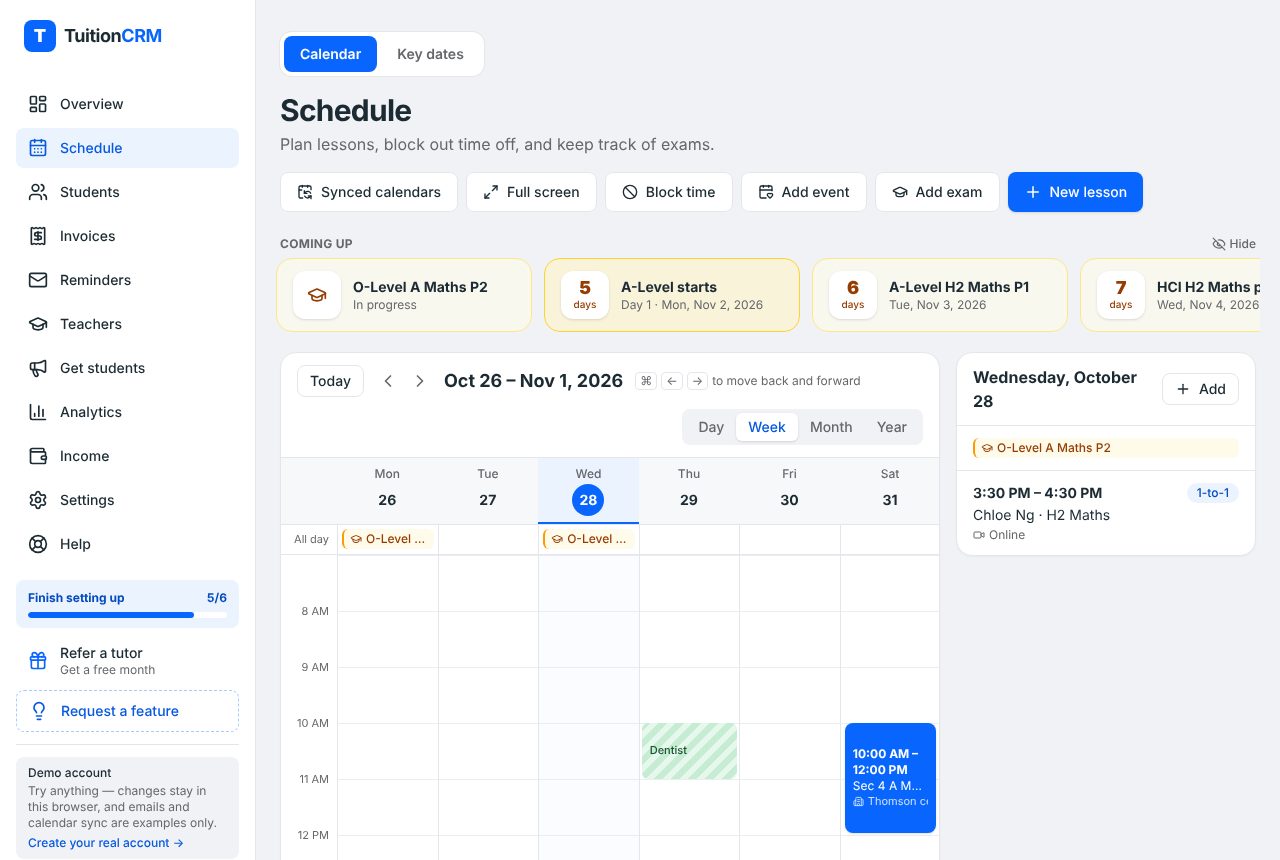
Book a lesson once, and let it repeat
- Go to Schedule and click New lesson (or click an empty time on the calendar).
- Make sure 1-to-1 is selected and choose the student. For a class, click Group instead.
- Pick the date, start time and length, and choose the location: centre, home, online or other.
- Under Repeat, choose Every week, Every 2 weeks or Every month, then when it ends.
- Click Save.
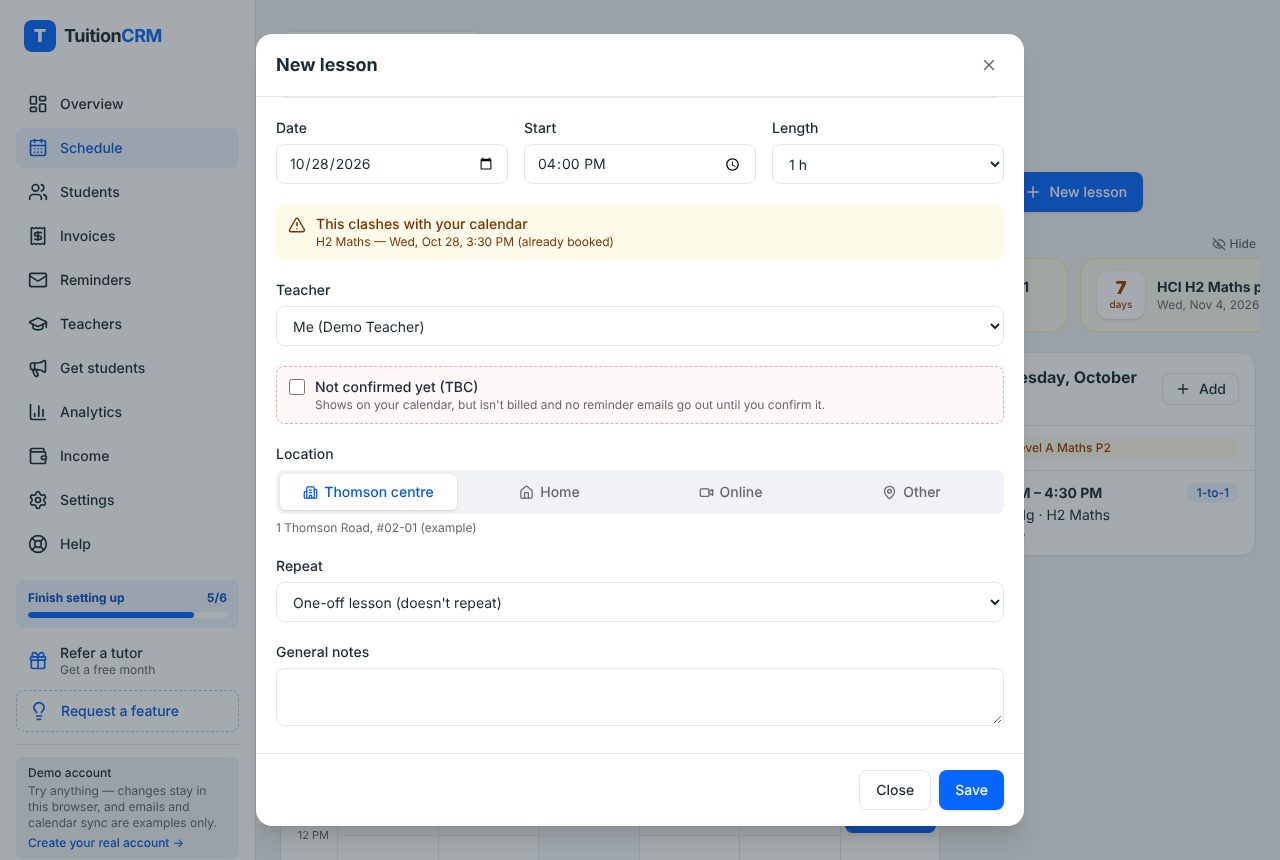
If the new lesson overlaps another one, a yellow warning appears before you save. You decide, so there are no surprises at the door.
Skip public holidays in one step
When a repeating lesson lands on a public holiday or on a day you have blocked, a yellow box lists those dates. For each one, choose No lesson (skipped) or Lesson goes ahead. Skipped dates are not billed and no reminders go out. The Help page has the steps under how to skip holidays on repeating lessons.
Block time and move a lesson in two taps
- Click Block time to mark a trip or appointment. You are warned if you book a lesson over it.
- Click a lesson, then Reschedule, pick the new time and click Move lesson. A message for the parent appears, ready to send on WhatsApp.
- Weekly lessons about to run out? Click any lesson in the series, then Extend series.
Check it on your phone
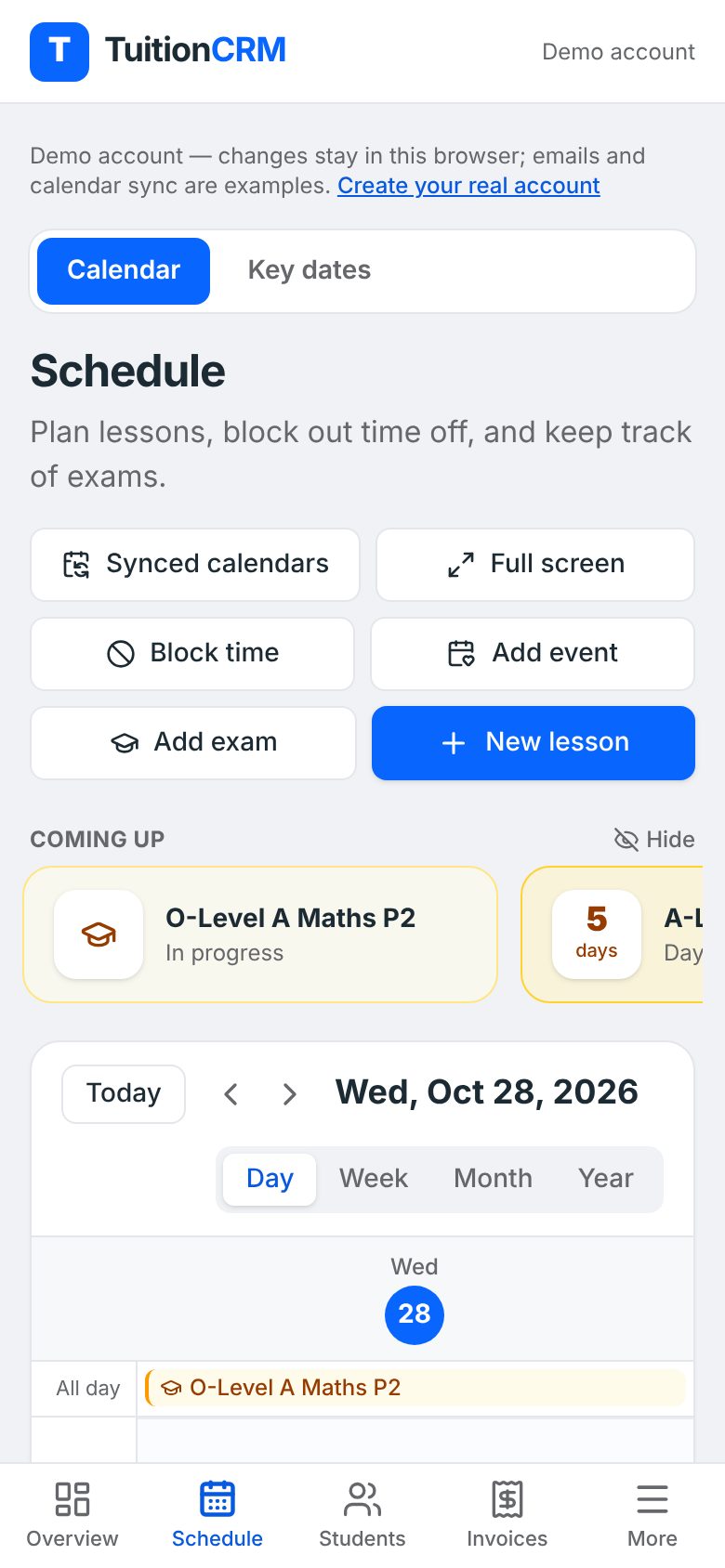
Under Synced calendars you can also show your lessons inside your own iPhone or Google Calendar, so you don't have to open another app. The full steps are on the scheduling feature page.
A weekly routine that takes ten minutes
- Sunday evening: open the coming week. Check for clashes, gaps and public holidays.
- Mid-week: move any lesson that has changed, and tell the parent the same day.
- Start of each term: extend weekly lessons, and add exam dates and your own time off.
- Before a big exam: add extra lessons and tell families your holiday availability early.
If you tell families what to expect, you will fight fewer fires. Parents in Singapore plan around the school year, so they will thank you for clear dates.
Common questions
Can I use Google Calendar to schedule tuition?
Yes, and many tutors start there. It repeats lessons and works on your phone. The gap is that it doesn't connect to attendance, make-ups or invoices. If you later move to a tuition app, you can show your Google Calendar inside it so personal events show as busy time.
How do I avoid double-booking lessons?
Put every lesson, block of personal time and exam in one calendar, and check for overlaps whenever you say yes to a new time. Also count travel time between homes. Tuition apps flag a clash before you save a lesson.
Should I teach on public holidays?
It is your choice. If you do not, say so in your policy and don't charge for those lessons. If you do, tell parents early. Either way, decide before the holiday, not after a parent asks.
How far ahead should I schedule lessons?
A full term is a good rule. Book weekly lessons until the end of term, then extend them once the next term's dates are out. Don't book too far, because school timetables change.
How do I tell parents when I move a lesson?
Message them the same day with the old time, the new time and a short reason. A WhatsApp message is what most Singapore parents expect. Keep a record of the change so it matches what you bill.
Can I run group classes on the same schedule?
Yes. Create the group once, book its lessons, and every student in the group is on each lesson. Changing the group's usual time updates the whole term.