How to Make a PayNow QR Code for Tuition Fees
· 6 min read · By Gregory Tan
To make a PayNow QR code for tuition fees, register your mobile number (or your UEN, if your tuition business is registered) for PayNow with your bank, then generate a QR that carries your PayNow number, the exact amount and a reference such as the invoice number. Parents scan it with PayLah! or any Singapore banking app, check your name, and pay in seconds. A plain QR works too, but then each parent has to type the amount, which is where wrong payments start. Here is how to set it up, from the simplest way to the one that does it for you.
What a PayNow QR code does for a tutor
Most Singapore parents already pay people by PayNow, so it is the easiest way to be paid. A QR code saves them typing your number and lets them confirm they are paying the right person. PayNow is run through the banks (see the Association of Banks in Singapore's PayNow page), and a transfer from one person to another does not go through a card network. That means no card fee for you.
There are two kinds of QR code, and the difference matters:
| Plain PayNow QR | QR with amount and reference | |
|---|---|---|
| What the parent sees | Your name, then a blank amount | Your name, the exact amount, the reference |
| Typing needed | Amount and reference | None |
| Risk of a wrong payment | High: any amount can be typed | Low: the amount is locked |
| Matching a payment to a student | Check your bank statement by hand | The invoice number is in the reference |
| Best for | A one-off, or your tutor website | Every monthly invoice |
Step 1: Get your PayNow ready
- Open your banking app and find PayNow (the menu name differs by bank).
- Link your mobile number to the bank account where you want to be paid. If your tuition business is registered with ACRA, link your UEN to a business account instead.
- Pick a PayNow name that parents will recognise. Parents see the name registered with your bank before they pay, so a name that matches your WhatsApp profile builds trust.
- Test it: ask a friend to PayNow you S$1, or scan your own QR with another banking app. Your name should appear.
If you are a sole proprietor or run a small centre, think about whether parents should pay your personal number or a business account. A business UEN looks more professional on an invoice, and it keeps tuition money separate from personal money when it is time to file with IRAS. Our income tax guide for private tutors explains what to keep, and IRAS has a page on tax for the self-employed.
Step 2: Make the QR code
Option A: Use your bank app
Most banking apps and PayLah! can show your own PayNow QR, and some let you set an amount. It is free and takes a minute. The weakness is that you have to type the amount and send a screenshot every time, and the reference is rarely the invoice number.
Option B: A free QR generator
Several free tools turn a PayNow number, an amount and a reference into a QR image. Our own PayNow invoice generator does this in your browser without signing up, and puts the QR on a clean tuition invoice. Nothing you type is saved.
What to put in the QR
- Your PayNow number: the mobile number or UEN you registered.
- The amount: the full month's fees in S$, for example S$280 for four P6 Maths lessons at S$70.
- The reference: an invoice number such as INV-0052. It will show up on your bank statement, so you know which parent paid.
- Editable or locked: lock the amount for invoices. Leave it open only for a general QR on your website.
Step 3: Send it so parents actually pay
A QR is only useful if parents can scan it. This is the part most tutors get wrong.
- Send it as an image, with the invoice. A QR inside a PDF is awkward to scan on a phone. Send a picture, so the parent can save it.
- Say how to scan it. Parents on one phone cannot scan a QR on that same screen. Tell them to save the image, then open their banking app and choose scan from gallery (the wording differs by app). PayLah! and most banking apps have this.
- State the amount in the message too. For example: "Hi Mrs Tan, October fees for Chloe: S$280. PayNow QR attached, due 8 Nov." If anything looks off, they will notice.
- Mark it paid the same day. When the money arrives, tick it off. Don't leave it to the end of the month.
Chasing late payments? Our fee reminder message templates give you polite wording for the first reminder and the second.
The faster way: PayNow QR codes in TuitionCRM
In TuitionCRM you add your PayNow once, and every invoice gets your QR with the exact amount and invoice number filled in. Invoices with your PayNow QR are free on every plan (see the invoices and PayNow feature page).
Add your PayNow once
- Go to Settings → PayNow (or Invoices → Settings).
- Enter your PayNow mobile number or UEN and the name parents will see, and click Save.
- Scan the QR with your own PayLah! to check your registered name shows up. You don't need to pay.
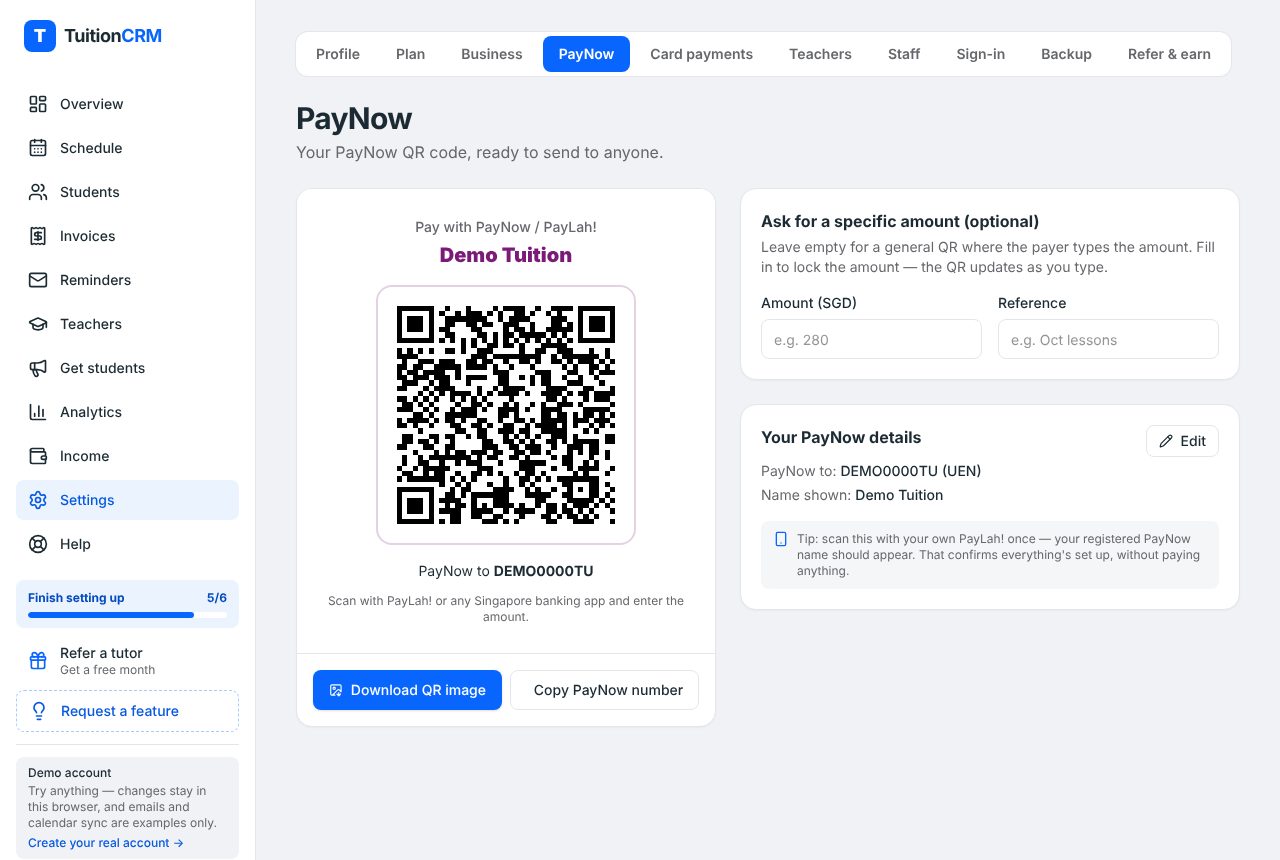
Need a QR for one payment, such as a deposit or a trial lesson? On the same page, type an Amount and Reference, then click Download QR image (on a phone, Share QR image) and send it.
Every invoice gets the QR by itself
- Go to Invoices and click New invoice.
- Choose the student and the month, then click Fill items to add the lessons they attended.
- Check the amounts and click Create invoice. Your PayNow QR is on it, with the amount filled in.
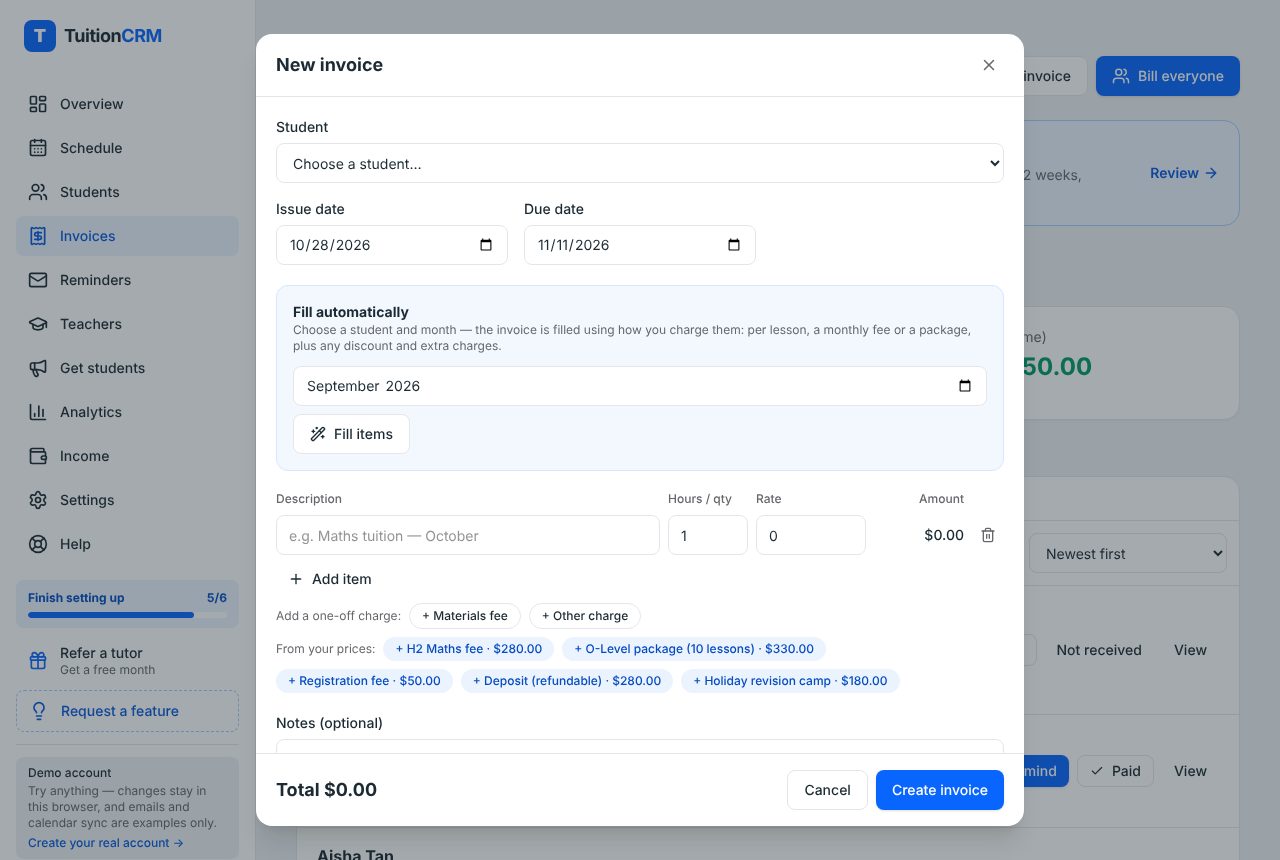
Doing the whole class? Click Bill everyone and every parent's invoice is worked out at once, each with its own QR. Then send each one: open the invoice, click Share invoice image on a phone (or Download invoice image on a computer) and send it on WhatsApp.
Know who has paid
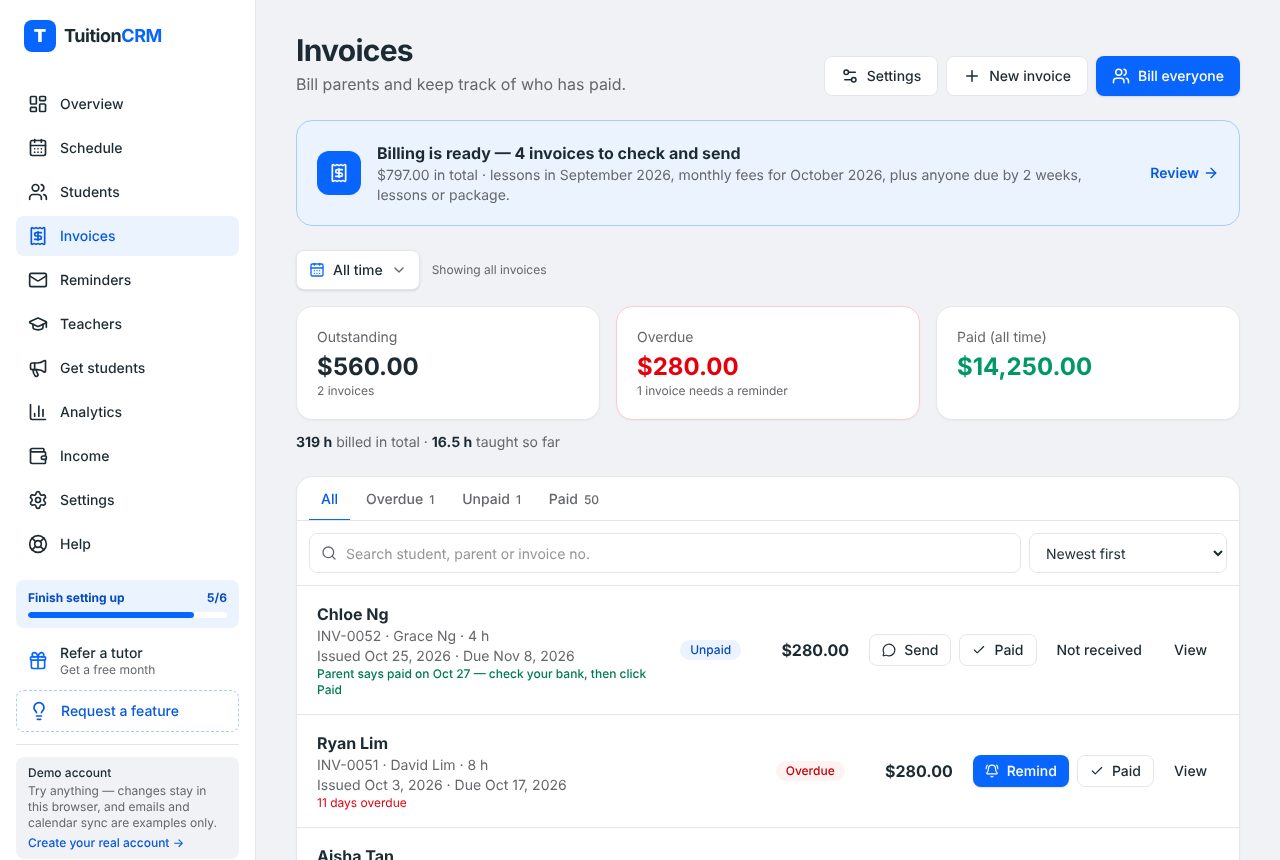
When the money arrives, click Paid next to the invoice. If a parent taps "I've paid" on their own page, you see it in the list so you can check your bank, then click Paid. Overdue invoices have a Remind button with a polite message ready. The steps are in the Help page under how to let parents pay by PayNow or PayLah. The money goes from the parent to your own bank account. TuitionCRM never holds it and takes no cut of PayNow payments.
Common questions
Do I need a UEN to receive PayNow for tuition?
No. Many private tutors use their mobile number. A UEN is for registered businesses. If you register a business with ACRA, you can link your UEN to a business account.
Why does the parent see my name when they scan?
Their bank shows the name registered to your PayNow before they pay. That is how they know it is really you. The name you type on an invoice is only for the invoice.
Can parents pay from the same phone that shows the QR?
Not by scanning the screen. They should save the image to their photos, then choose scan from gallery in their banking app. Some parents will prefer to type your number instead, so put it in the message.
What if a parent pays the wrong amount?
Check the reference, then ask them to top up the balance or arrange a refund. A QR with the amount locked prevents most of this. Tell the parent kindly, and record the difference on the next invoice.
Does PayNow cost the tutor anything?
Normally a PayNow payment between individuals has no fee, but check your own bank's terms, especially for business accounts. Card payments are different: they have card fees.
How do I know a payment is really from a parent?
Match the amount and reference to your invoice and check your bank app. Don't rely on a screenshot alone: a screenshot of a payment is not proof it arrived.